
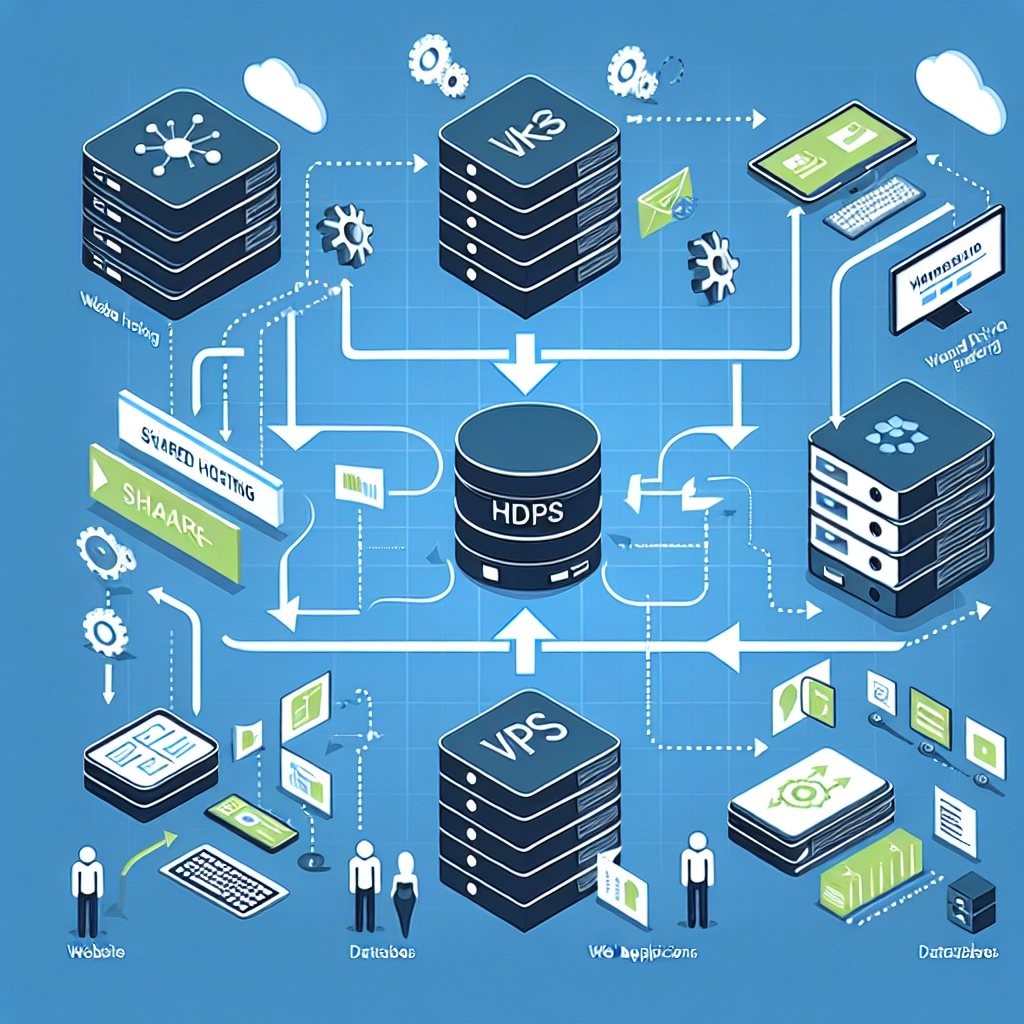
Migrating your website can feel like a daunting task, especially if you’ve been comfortably nestled in the cozy world of shared hosting for a while. But with the right mindset, a sprinkle of patience, and a bit of know-how, you can transition to VPS (Virtual Private Server) hosting smoothly. Let’s break down the steps to ensure your move is as seamless as possible.
Why Consider VPS Hosting?
First off, you might be wondering why you’d want to make the switch in the first place. Shared hosting is great for beginners, but as your website starts to grow, you may find yourself outgrowing its limitations. Sites hosted on VPS have better performance, higher reliability, and more resources to handle increased traffic. Plus, with VPS, you’re usually looking at enhanced security features and more customization options. Sounds appealing, right?
Step 1: Choose Your VPS Hosting Provider
Before you roll up your sleeves and start the migration process, the first step is to choose a suitable VPS hosting provider. Consider factors such as:
- Cost: VPS hosting can be more expensive than shared hosting, so find a plan that fits your budget.
- Performance: Look for reviews that discuss server speed and uptime.
- Scalability: Ensure that the provider allows you to easily upgrade your resources as your needs grow.
- Customer Support: Having reliable support is essential, especially if you’re new to VPS.
Once you pick your provider, sign up for a VPS plan.
Step 2: Backup Your Current Site
Before jumping into migration, it’s crucial to safeguard your data. On your shared hosting account, create a complete backup of your website. This includes:
- Website Files: Use an FTP client like FileZilla to download your files.
- Database: If your site uses a database (like MySQL), back it up through your hosting control panel (cPanel) or phpMyAdmin.
Make sure you store these backups in a safe location, preferably in multiple places to keep them secure.
Step 3: Set Up Your VPS
Once you have your VPS account set up, it’s time to get it ready for your site. This involves a few essential tasks:
- Install a Control Panel: If you’re less tech-savvy, installing a control panel like cPanel or Plesk can make managing your VPS a lot easier.
- Configure the Server: Depending on your needs, you may need to configure your server settings. This can include setting up firewalls, optimizing PHP settings, or adjusting other server configurations.
If you’re feeling adventurous, you can also set it up without a control panel, but there’s definitely a learning curve involved!
Step 4: Transfer Your Files
With your VPS ready, it’s time to upload your website files. Using your FTP client again, upload the backup files you downloaded earlier to the appropriate directory on your VPS (usually the public_html folder).
Step 5: Restore Your Database
To complete the transfer, you’ll need to import your database to the new server. The process can vary depending on the database manager you’re using, but if you’re using phpMyAdmin, it typically involves these steps:
- Open phpMyAdmin on your VPS.
- Create a new database and user (ensure you grant the proper permissions).
- Navigate to the Import tab and upload your previously backed up
.sqlfile.
This step might take a few moments, especially if your database is large, so grab a coffee while you wait!
Step 6: Update Your Configuration Files
After your files and databases are transferred, you might need to update your configuration files to reflect the new database settings, especially for CMS platforms like WordPress. This will include the information like the database name, username, and password.
Step 7: Test Your Site
Before you switch over your domain, it’s essential to test your site on the new VPS. You can do this by modifying your computer’s hosts file to point your domain to the new server’s IP address. This way, you can check if everything is working smoothly.
Step 8: Update Domain DNS Settings
Once you’re satisfied that your site is functioning well on the VPS, it’s time for the final step: updating your DNS settings to point to your new VPS server. Log in to your domain registrar, and change the nameserver settings to those provided by your VPS provider. It may take some time for the changes to propagate through the internet, so don’t panic if your site isn’t live immediately!
Transitioning from shared hosting to VPS hosting can be a game changer for your website’s performance and scalability. While the migration process can seem a bit complex at first, breaking it down into manageable steps makes it much easier to handle. Once you’re settled into your new VPS home, you’ll find that the benefits far outweigh the initial challenges, opening the door to greater opportunities for your online presence. Enjoy the journey ahead!
Welcome to DediRock, your trusted partner in high-performance hosting solutions. At DediRock, we specialize in providing dedicated servers, VPS hosting, and cloud services tailored to meet the unique needs of businesses and individuals alike. Our mission is to deliver reliable, scalable, and secure hosting solutions that empower our clients to achieve their digital goals. With a commitment to exceptional customer support, cutting-edge technology, and robust infrastructure, DediRock stands out as a leader in the hosting industry. Join us and experience the difference that dedicated service and unwavering reliability can make for your online presence. Launch our website.