
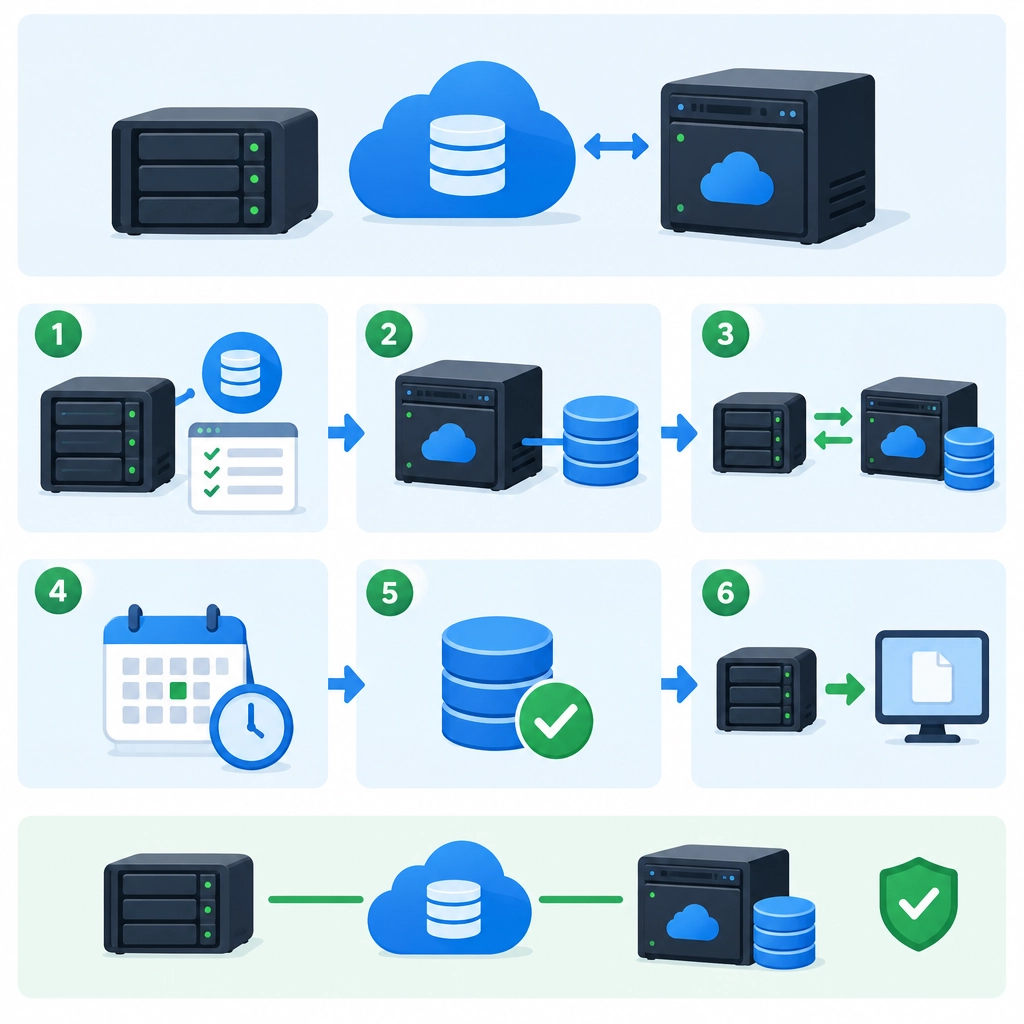
How to Use a Storage VPS for Backups
A storage VPS can be a practical home for backups: it gives you a remote place to store files without requiring a server of your own in a second location. But simply copying files onto it isn’t enough. A dependable backup setup needs a clear schedule, secure access, and a way to check that your data can actually be restored.
Here’s how to build one that’s useful when things go wrong.
Choose a VPS that fits your backup needs
Start by estimating how much data you need to protect and how quickly it grows. Remember to leave room for older versions of files, not just the latest copy. A VPS with limited storage may be fine for documents and configuration files, while photos, databases, or full system images may call for more capacity.
Look at the provider’s storage type, network limits, uptime record, backup policies, and physical location. A VPS in the same building or region as your primary server may be convenient, but it offers less protection against a regional outage. If your main concern is local hardware failure, a separate data center is a sensible improvement.
Also check whether the provider’s own snapshots are included. They can be useful, but they are not necessarily a substitute for backups you control—especially if they’re stored within the same provider’s infrastructure.
Secure the connection first
Before transferring important data, lock down access to the VPS. Use SSH keys rather than password-based login where possible, disable unused accounts and services, and keep the operating system updated. A firewall should allow only the connections you need.
For backups, it’s often best to create a dedicated user with access only to the backup directory. That way, a compromised application or account on your main server is less likely to gain control of the entire VPS. Keep credentials and encryption keys somewhere safe, separate from the machine being backed up. If both the data and the key disappear together, restoring may be impossible.
Pick a backup method
The right tool depends on what you’re backing up:
rsyncis a straightforward option for copying files over SSH. It can transfer only changed data, making regular backups faster.- Restic and BorgBackup create encrypted, deduplicated repositories. Deduplication can save space when many files share similar content, and built-in checks make them useful for recurring backups.
- Database tools are better for live databases than copying database files while they’re changing. For example, create a database dump or use the database’s own backup features, then send the result to the VPS.
Whatever you choose, enable encryption before data leaves your main machine. Encryption protects your files if someone else gains access to the VPS or its disks.
Schedule backups—and keep older versions
A backup schedule should match how much data you can afford to lose. A daily backup may be enough for a home computer, while a frequently updated business database may need hourly or continuous backups.
Versioning matters just as much as frequency. If a file is accidentally deleted—or silently corrupted—a simple mirror can copy that damage to the backup. Keep multiple restore points so you can recover an earlier version. A rotation policy might retain daily backups for a week, weekly backups for a month, and monthly backups for longer. The right balance depends on your storage budget and how far back you may need to go.
Automate the process with a scheduled task, such as a systemd timer or cron job. Configure alerts for failed runs, and periodically check that the VPS has enough free space.
Test a restore before you need one
A successful backup job only proves that data was sent; it doesn’t prove that you can recover it. Every so often, restore a few files to a temporary location. For a larger system, test the steps needed to rebuild it on a fresh machine. Check that filenames, permissions, and database contents look right.
This is also a good moment to confirm that your encryption keys, repository passwords, and recovery instructions are available. Store those details somewhere secure and accessible even if your main computer is unavailable.
Follow the 3-2-1 rule
A storage VPS can be one part of a resilient backup plan, not the whole plan. The classic 3-2-1 approach is to keep three copies of important data, on two types of storage, with one copy off-site. For example, you might have the working files on your computer, a local external drive, and an encrypted backup on the VPS.
That arrangement helps protect against more than a failed hard drive. It gives you options if a device is stolen, files are overwritten, or an outage takes your primary system offline. Set up the VPS carefully, automate backups, and test a restore now and then—and your remote storage becomes far more than a pile of copied files.
Welcome to DediRock, your trusted partner in high-performance hosting solutions. At DediRock, we specialize in providing dedicated servers, VPS hosting, and cloud services tailored to meet the unique needs of businesses and individuals alike. Our mission is to deliver reliable, scalable, and secure hosting solutions that empower our clients to achieve their digital goals. With a commitment to exceptional customer support, cutting-edge technology, and robust infrastructure, DediRock stands out as a leader in the hosting industry. Join us and experience the difference that dedicated service and unwavering reliability can make for your online presence. Launch our website.