
How to Use a Storage VPS for Off-Site Backups
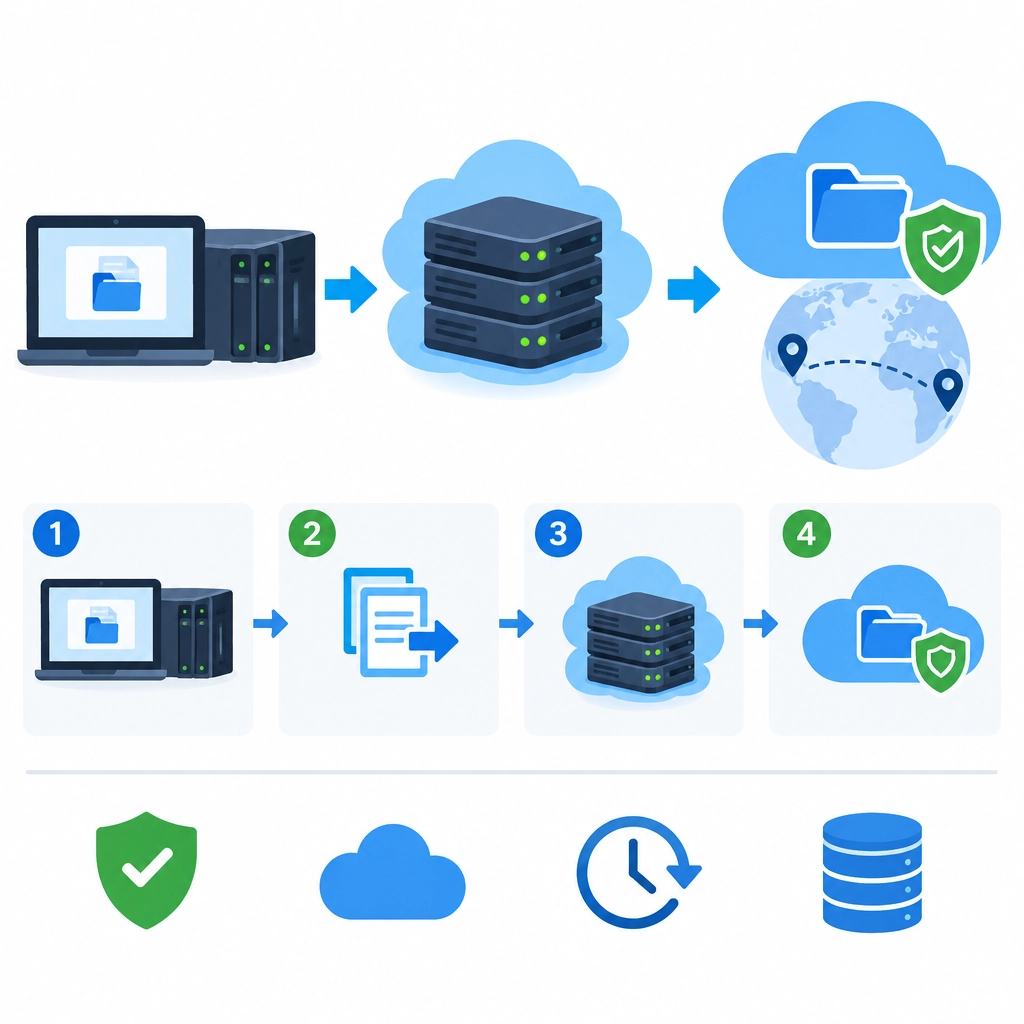
A backup stored beside the computer it protects isn’t much help if a fire, theft, or hardware failure affects both. That’s why off-site backups matter: they keep a separate copy of your important files somewhere else. A storage VPS can be a practical destination—offering remote disk space you control, often at a lower cost than managed backup services.
Setting one up takes more than copying files to a server, though. A dependable backup needs secure access, automation, and regular checks to make sure you can restore what you’ve saved.
What a storage VPS does
A storage VPS is a virtual private server configured primarily to store files. You connect to it over the internet and use its disk space for backups, archives, or other data. Unlike a basic cloud-drive account, it may give you more control over the operating system, storage tools, and backup schedule.
That control is useful, but it also means you’re responsible for the setup. A VPS is not automatically a backup system: you need to decide what to copy, how to protect it, and how to recover it.
Choose the right VPS
Start by estimating how much data you need to protect. Include not just today’s files, but expected growth and multiple versions of changing files. If you keep only the latest copy, accidental deletion or file corruption could be copied to the VPS before you notice.
Look for a provider with enough storage, reliable network access, and clear policies on bandwidth, snapshots, and server availability. Check where the data will be stored, too—location can matter for privacy, compliance, or recovery speed. A storage VPS should complement other protections, not become your only copy.
A useful rule of thumb is to keep at least three copies of important data, on two different types of storage, with one copy off-site. The VPS can serve as that off-site copy.
Secure the connection
Before sending data, lock down access to the server. Use SSH keys instead of password-based logins where possible, disable root login over SSH, and keep the server’s software updated. If the VPS only needs to receive backups, give it a dedicated account with limited permissions rather than using an all-powerful administrator account.
Encryption is essential. Use an encrypted connection while transferring files, and consider encrypting the backup itself before it leaves your computer or office. That way, if someone gains access to the VPS or its provider account, the backup contents remain protected. Store encryption keys somewhere separate and secure; an encrypted backup is difficult to restore if the key is lost.
Pick a backup method
The right tool depends on what you’re backing up. For a straightforward file backup, utilities such as rsync can copy changed files efficiently over SSH. For versioned, encrypted, and deduplicated backups, tools such as Restic or Borg are often better suited. Deduplication avoids storing repeated copies of unchanged data, which can save space and bandwidth.
Decide how often backups should run. Personal documents might be backed up daily, while a frequently updated website or business database may need more frequent copies. A common approach is to perform an initial full backup, then schedule incremental backups that store only changes.
For databases, avoid copying files while the database is actively changing unless the backup tool supports it. Use a database-native dump or snapshot process so the resulting backup is consistent and usable.
Automate—and monitor—the process
Manual backups are easy to forget. Schedule them with a system timer or cron, and configure your backup tool to report failures. Keep logs, and pay attention to storage use so the VPS doesn’t quietly run out of space.
Set a retention policy, too. For example, you might keep daily backups for a week, weekly backups for a month, and monthly backups for a year. The right schedule depends on how much history you need and how much storage you can afford.
Most importantly, test restores. Every so often, recover a few files to a separate location. For a larger system, rehearse restoring the whole service. A successful backup job only proves that data was sent; a restore test proves that you can actually use it.
Make it part of a recovery plan
Write down where the backups live, how to access the VPS, which tool created them, and where the encryption keys are stored. Keep this information somewhere other than the VPS itself. If your main computer or account becomes unavailable, clear instructions can make recovery much faster.
A storage VPS can provide a flexible, affordable layer of off-site protection. Treat it as part of a complete backup plan: secure it, automate it, keep multiple versions, and test recovery. The real value isn’t simply having files stored far away—it’s knowing you can get them back when you need them.
Welcome to DediRock, your trusted partner in high-performance hosting solutions. At DediRock, we specialize in providing dedicated servers, VPS hosting, and cloud services tailored to meet the unique needs of businesses and individuals alike. Our mission is to deliver reliable, scalable, and secure hosting solutions that empower our clients to achieve their digital goals. With a commitment to exceptional customer support, cutting-edge technology, and robust infrastructure, DediRock stands out as a leader in the hosting industry. Join us and experience the difference that dedicated service and unwavering reliability can make for your online presence. Launch our website.