
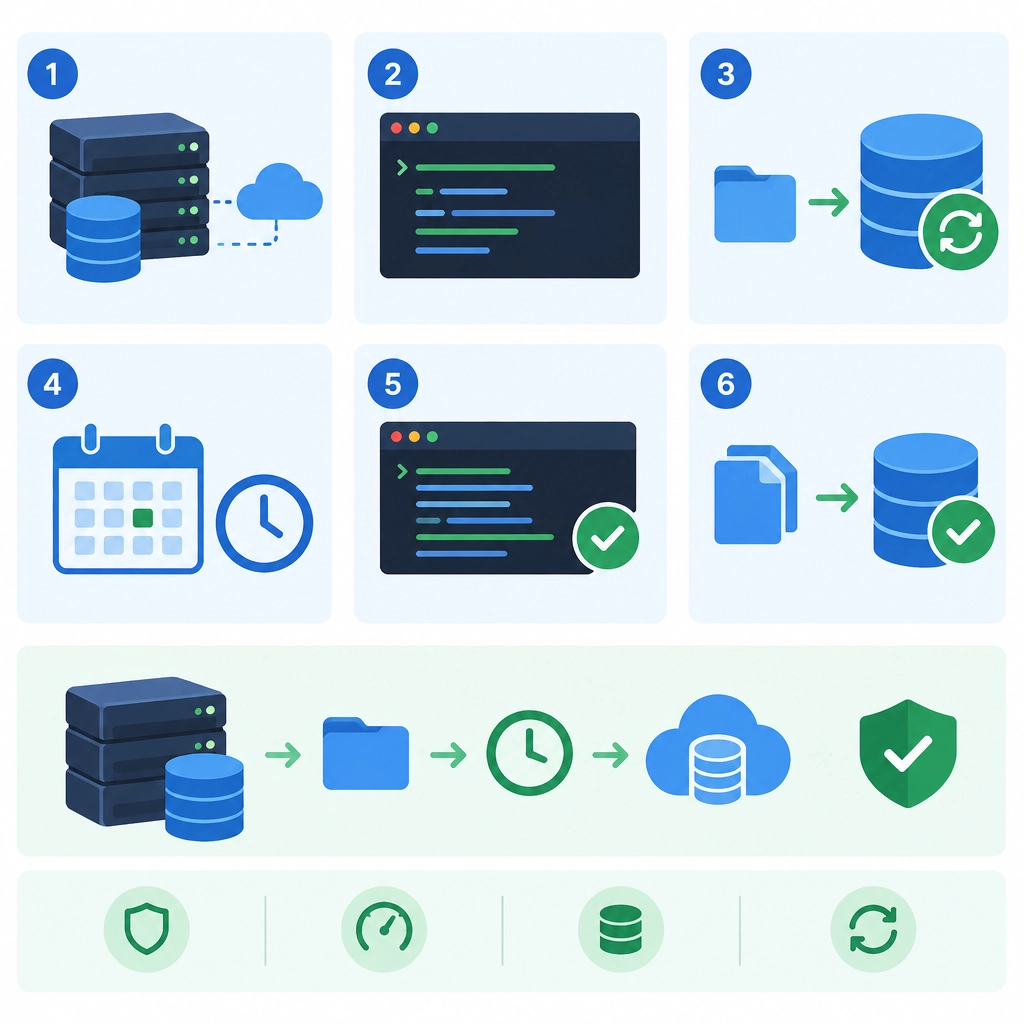
How to Set Up Automated Backups on a Storage VPS
A storage VPS can hold everything from family photos and project files to website data and business documents. But keeping files on one server isn’t the same as backing them up. Hardware can fail, accidental deletions happen, and a security incident can make stored data inaccessible.
Automating backups gives you a dependable way to recover without relying on memory or manual copy-and-paste. Here’s a practical approach for setting up a backup routine on a Linux-based storage VPS.
1. Decide what needs backing up
Start by listing the data you can’t afford to lose. That might include:
- Personal or shared files
- Website content and databases
- Application configuration
- System or service settings
- Encryption keys or other recovery information
Avoid blindly copying every file on the server. Temporary files, caches, and downloaded packages may not be worth storing. A focused backup is faster, cheaper, and easier to restore.
Also decide how often you need backups. A personal archive might be backed up daily, while frequently updated business data may need more frequent snapshots.
2. Choose a backup destination
A backup stored on the same VPS won’t help much if the VPS itself fails or gets compromised. Use a separate destination, such as:
- Another server or VPS
- Object storage
- A network-attached storage system in a different location
- An encrypted external drive, for occasional offline copies
For stronger protection, follow the 3-2-1 rule: keep three copies of important data, on two types of storage, with one copy off-site.
3. Pick a backup tool
For straightforward file backups, rsync is widely available and easy to script. It transfers only changed files, which can save time and bandwidth. However, a basic rsync mirror can also copy deletions. If a file is accidentally removed from the source, it may disappear from the destination too.
For versioned backups, tools such as BorgBackup or Restic are often a better fit. They support features such as encryption, deduplication, and retention policies. Deduplication stores repeated data efficiently, while versioning lets you recover an earlier copy of a file.
Whichever tool you choose, check that it supports your destination and test its restore process before trusting it with important data.
4. Protect credentials and permissions
Backups often contain sensitive information, so treat them as carefully as the originals. Use encryption when sending data to a remote destination, and restrict access to backup files and credentials.
For SSH-based transfers, create a dedicated account or key with only the permissions the backup needs. Don’t put passwords or private keys directly into a script. Store secrets in a protected configuration file or a secret-management system, and limit access to it.
If your backup tool encrypts data, keep its recovery key somewhere safe and separate from the VPS. An encrypted backup is useless if the key is lost.
5. Schedule the backup
On most Linux systems, scheduled jobs can be run with cron or a systemd timer. For example, you could run a script nightly with cron:
30 2 * * * /usr/local/bin/backup.sh
That runs the script at 2:30 a.m. every day. The script should run the backup command, record a log, and return a clear success or failure status.
Before scheduling it, run the script manually and check the output. Then confirm that the scheduled job is actually running. Cron jobs may not have the same environment or PATH as your interactive shell, so use full paths to commands and log errors somewhere you’ll notice them.
6. Set a retention policy
Saving every backup forever can become expensive. Decide how many daily, weekly, or monthly versions to keep. For instance, you might retain recent daily backups for a couple of weeks, then keep selected weekly backups for several months.
Many backup tools can prune older versions automatically. Review the policy before enabling it, though: an overly aggressive cleanup rule can remove useful restore points.
7. Test a restore
A backup is only useful if you can restore from it. Periodically restore a few files to a temporary directory and verify that they open correctly. If you’re backing up a database or a complete service, test restoring it in a safe environment too.
Finally, monitor backup logs and storage usage. Set up an alert for failed jobs or low disk space, and revisit your setup whenever the data or server changes.
Automated backups don’t have to be complicated. A clear schedule, a separate destination, sensible retention, and occasional restore tests can turn a storage VPS into a much more resilient place to keep your data.
Welcome to DediRock, your trusted partner in high-performance hosting solutions. At DediRock, we specialize in providing dedicated servers, VPS hosting, and cloud services tailored to meet the unique needs of businesses and individuals alike. Our mission is to deliver reliable, scalable, and secure hosting solutions that empower our clients to achieve their digital goals. With a commitment to exceptional customer support, cutting-edge technology, and robust infrastructure, DediRock stands out as a leader in the hosting industry. Join us and experience the difference that dedicated service and unwavering reliability can make for your online presence. Launch our website.