
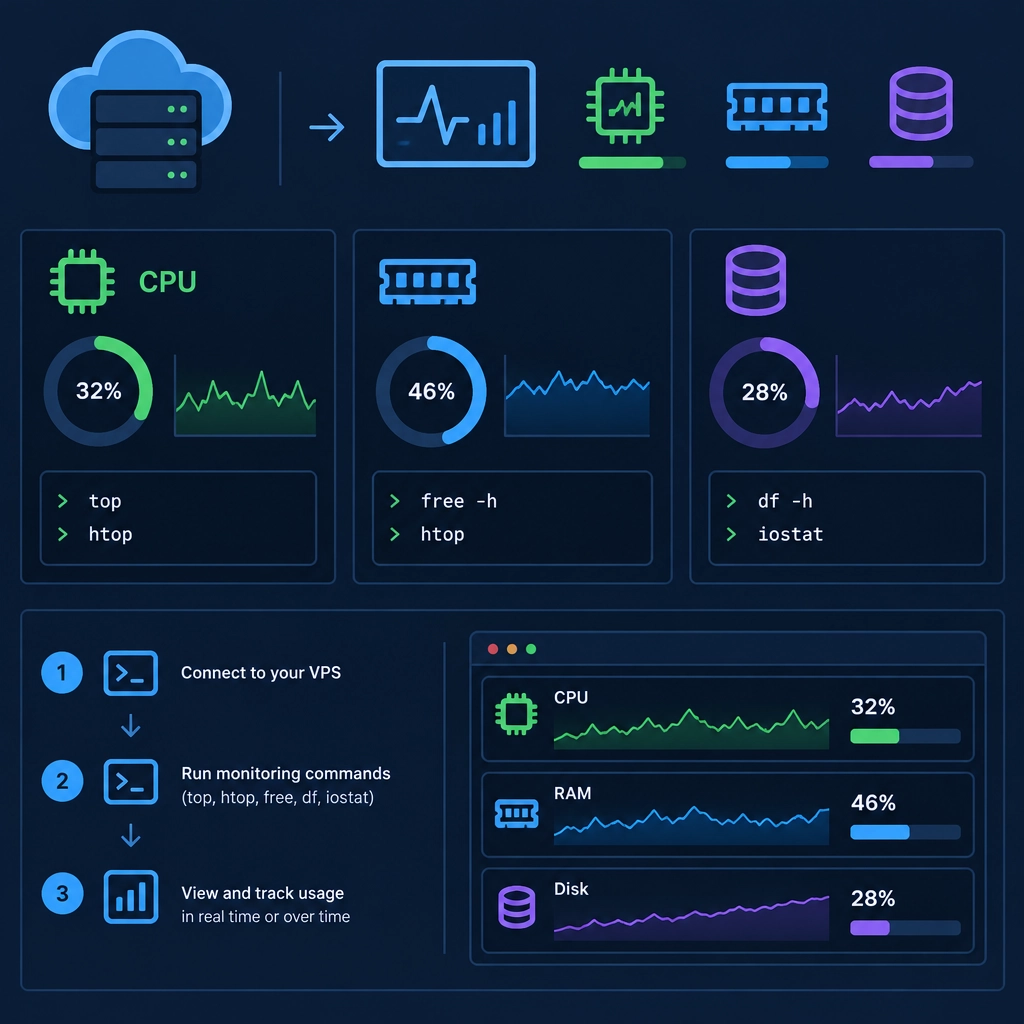
How to Monitor CPU, RAM, and Disk Usage on a VPS
A VPS can look perfectly healthy—until a website slows down, an app stops responding, or a database runs out of space. Monitoring CPU, memory, and disk usage helps you spot those warning signs early and decide whether to optimize your software or upgrade your server.
The good news is that you don’t need an elaborate monitoring system to get started. Most Linux VPSs include useful command-line tools, and you can add alerts or dashboards as your needs grow.
Check usage directly in the terminal
Start by connecting to your VPS over SSH. A few built-in tools can give you a quick snapshot of what’s happening.
CPU and memory: top or htop
Run:
top
top updates continuously and shows system load, CPU activity, memory usage, and the processes consuming the most resources. Press q to quit.
For a more readable, interactive view, install htop:
sudo apt install htop   # Ubuntu or Debian
sudo dnf install htop   # Fedora or many RHEL-based systems
Then run:
htop
You can sort processes by CPU or memory and quickly identify a program that’s using more resources than expected. Keep in mind that high CPU use isn’t automatically a problem: a short burst during a backup or deployment may be normal. Persistent high usage, especially alongside slow response times, deserves a closer look.
Memory: free
To see how much memory is available, run:
free -h
The -h option makes the numbers easier to read. Pay attention to the available memory value, not just the amount shown as “free.” Linux uses spare memory for caching, which is generally helpful and doesn’t mean your server is running out.
If available memory stays low and the system is using substantial swap, your VPS may be under memory pressure. Swap can help prevent crashes, but heavy swap use often slows a server down.
Disk space: df
Check filesystem space with:
df -h
This shows how full each mounted filesystem is. If the root filesystem or the partition holding your website is close to 100%, uploads may fail and services may behave unpredictably.
To find which directories are using space, try:
sudo du -sh /var/* 2>/dev/null
For a more convenient interactive browser, install ncdu:
sudo apt install ncdu
sudo ncdu /
Be cautious when deleting files from system directories. First identify what’s taking up space; old logs, backups, and cached files are common culprits, but each should be removed using an appropriate cleanup method.
Look beyond one-time snapshots
A command-line check tells you what’s happening right now. It won’t show whether CPU usage has been climbing all week or whether disk space is disappearing steadily.
For longer-term CPU and memory history, tools such as sysstat can record system activity. After installing and enabling it for your distribution, you can use commands like:
sar -u 1 5   # CPU activity, sampled for five seconds
sar -r 1 5   # Memory activity
Exact setup steps vary by Linux distribution, so check whether the service is enabled and collecting data before relying on historical reports.
For disk trends, regular checks of df -h can help, but a monitoring platform is more practical as your server fleet grows. Options such as Netdata, Prometheus with Grafana, or a hosting provider’s built-in dashboard can display graphs and send alerts when thresholds are crossed.
Set useful alerts
Monitoring only helps if you notice the warning. Consider alerts for conditions such as:
- CPU usage remaining unusually high for several minutes
- Memory availability staying low or swap usage rising
- A filesystem passing 80–90% capacity
- A service becoming unreachable
Avoid treating every brief spike as an emergency. A well-chosen alert should signal a persistent or actionable issue, not normal day-to-day variation.
Make monitoring part of routine maintenance
Check your VPS after deployments, during traffic spikes, and when users report slowdowns. If a resource is consistently near its limit, look for the cause before resizing: an inefficient query, an unnecessary background job, oversized logs, or a misconfigured service may be easier to fix than the underlying capacity.
A few minutes of monitoring can turn a sudden outage into a manageable maintenance task. Start with top, free -h, and df -h; add history and alerts as your server becomes more important.
Welcome to DediRock, your trusted partner in high-performance hosting solutions. At DediRock, we specialize in providing dedicated servers, VPS hosting, and cloud services tailored to meet the unique needs of businesses and individuals alike. Our mission is to deliver reliable, scalable, and secure hosting solutions that empower our clients to achieve their digital goals. With a commitment to exceptional customer support, cutting-edge technology, and robust infrastructure, DediRock stands out as a leader in the hosting industry. Join us and experience the difference that dedicated service and unwavering reliability can make for your online presence. Launch our website.