
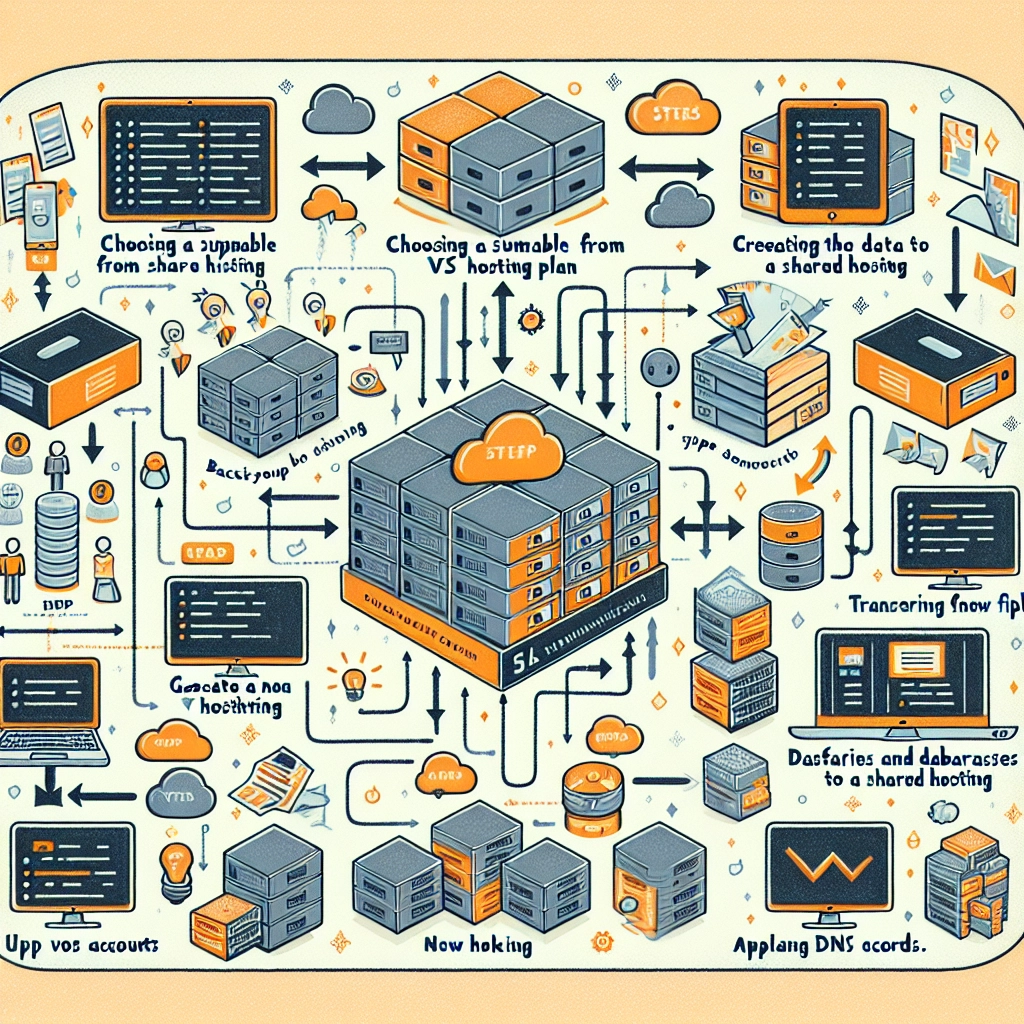
How to Migrate from Shared Hosting to VPS Hosting
Are you outgrowing your shared hosting plan? Maybe your website’s traffic has started to increase, or perhaps you’re just looking for more control and flexibility over your hosting environment. Whatever the reason, migrating from shared hosting to a Virtual Private Server (VPS) can definitely provide the resources and performance you need. While the thought of moving might seem daunting, it’s not as tricky as it sounds!
In this blog post, we’re going to walk you through the steps of migrating from shared hosting to VPS hosting, making sure to keep it straightforward and approachable. So, grab a cup of coffee, and let’s dive in!
Step 1: Choose the Right VPS Hosting Provider
Before you get into the nitty-gritty of migration, the first thing you’ll want to do is choose a VPS hosting provider that fits your needs. Look for features such as:
- Resource Allocation: You’ll want to ensure that the VPS solution you choose provides sufficient CPU, RAM, and storage for your website’s needs.
- Scalability: Pick a provider that allows you to easily scale up as your traffic continues to grow.
- Support: Reliable customer service can be a lifesaver, especially if you encounter any issues during or after the migration.
- Managed vs. Unmanaged: Decide if you want a managed VPS (where the provider takes care of maintenance and updates) or an unmanaged one (where you’re responsible for those tasks).
Once you’ve done your research and found a hosting provider, it’s time to set up your VPS.
Step 2: Set Up Your VPS
After purchasing your VPS plan, you’ll need to set it up. Most providers offer an easy-to-follow setup wizard, so this step should be pretty straightforward. Here’s what you’ll generally want to do:
- Access Your Control Panel: Once your VPS is set up, you should receive login credentials for your VPS control panel.
- Install Required Software: Depending on your website’s needs, you might want to install a web server (like Apache or Nginx), a database (like MySQL or PostgreSQL), and any necessary programming languages or frameworks (like PHP, Node.js, etc.).
- Secure Your VPS: Don’t skip this step! Implementing basic security measures, like setting up a firewall and changing default passwords, can help keep your server secure.
Step 3: Backup Your Website
Before migrating, it’s crucial to create a complete backup of your website. This includes your website files, databases, and any email accounts associated with it. Most hosting providers offer tools to help you with backups, or you can use plugins if your site is built on WordPress.
- Files: Use an FTP client (like FileZilla) to download all website files from your shared hosting.
- Databases: Export your database using phpMyAdmin or any database management tool your host uses.
Having this backup will give you peace of mind and help ensure that you can restore everything in case something goes wrong during the migration.
Step 4: Transfer Your Website Files and Database
Now, the exciting part—migrating your website! Here’s how:
- Upload Website Files: Connect to your new VPS using an FTP client, and upload the website files you previously downloaded from your shared hosting.
- Import Your Database: Use tools like phpMyAdmin to import the previously exported database backup into your new VPS.
- Update Configuration Files: If you’re using a CMS like WordPress, you’ll need to update your configuration file (like
wp-config.php) to point to the new database and server settings.
Step 5: Test Your Website
Once everything has been transferred, it’s crucial to test your website on the new VPS before switching over the DNS settings. You can achieve this by temporarily modifying your computer’s hosts file to point your domain to the new VPS IP address.
Check for any broken links, missing images, or database connection errors. If everything is working fine, you can proceed to the next step!
Step 6: Update DNS Settings
Now that your site is up and running on your VPS, it’s time to update your DNS settings. Log in to your domain registrar and update your DNS records with your new server’s IP address. DNS changes can take a few hours to propagate, so be patient!
Step 7: Monitor and Optimize
After your migration is complete and everything is running smoothly, take some time to monitor your VPS performance. Use tools to check your server load, response times, and website speed.
Consider optimizing performance by implementing caching solutions or Content Delivery Networks (CDNs) if you experience any slowdowns.
Switching from shared hosting to a VPS can feel like a significant leap, but it opens up a world of possibilities for your website. You’ll enjoy increased performance, faster load times, and greater control over your hosting environment. Plus, with proper planning and execution, the migration process can be relatively smooth. Embrace the change—and watch your online presence flourish!
Welcome to DediRock, your trusted partner in high-performance hosting solutions. At DediRock, we specialize in providing dedicated servers, VPS hosting, and cloud services tailored to meet the unique needs of businesses and individuals alike. Our mission is to deliver reliable, scalable, and secure hosting solutions that empower our clients to achieve their digital goals. With a commitment to exceptional customer support, cutting-edge technology, and robust infrastructure, DediRock stands out as a leader in the hosting industry. Join us and experience the difference that dedicated service and unwavering reliability can make for your online presence. Launch our website.